LESS WATCHING THE CLOCK. MORE TIME TO LEARN.
Classroom timer.
A clear, visual countdown for the whole room. Ready for your next lesson.
Clock hand color
Use the alarm and timer dials, or the controls below.
Weather · Choose a city · Change city
Choose a city to show current weather.
Weather estimates by Open-Meteo · refreshes every 15 minutes.
On first visit, a city is suggested from your browser’s time zone. City searches are sent to Open-Meteo. Your selected city and units are saved in this browser. Privacy
Weather is an estimate for general information and may differ at your location. For safety, travel or emergency decisions, consult official weather services.
Clock details
Choose your weather city to load moon data.
Moon data: MET Norway (CC BY 4.0). Phase names, approximate illumination and diagram are derived from its phase angle. The diagram mirrors by hemisphere; sky tilt varies. Rise/set events may fall on an adjacent date.
SOMETHING TO LOOK FORWARD TO
Set your next alarm.
GIVE THE MOMENT A FINISH LINE
A little time, well spent.
ONE THING AT A TIME
Find your focus.
One session at a time. Choose a break when you're ready.
EVERY SECOND COUNTS
Go at your own pace.
Ready when you are.
Keep this tab open and your device awake. Browser alarms cannot wake a sleeping device. Learn more ↗
A place for every moment.
Simple tools. No account needed.BEFORE THE ROOM FILLS UP
How to use a classroom timer on a projector
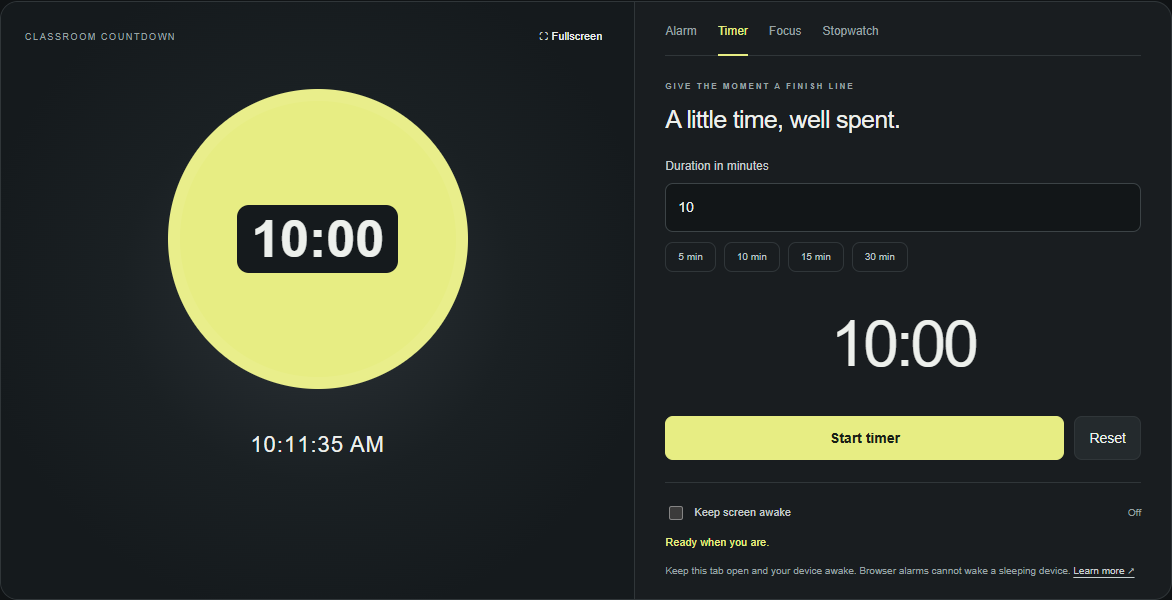
Set up the countdown on the computer connected to your classroom display. Before the lesson, run a short practice timer so you can check the screen, the sound and the controls in the room where you will use them.
Set up the display
- Connect and open the page. Connect your computer to the projector or classroom screen, then open this classroom timer. Show the browser on that display. If you extend your desktop, move the browser window onto the classroom screen before opening fullscreen.
- Choose the duration. In the Timer tab, select 5, 10 or 15 minutes, or enter your own duration in Minutes. Pick the duration before starting: selecting a preset replaces the current countdown.
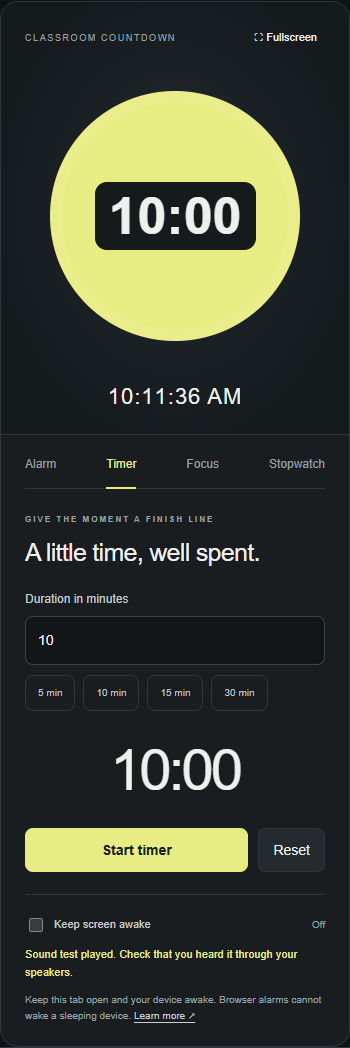
- Test the sound. Open the Alarm tab and select Test sound. Check that you hear it through the intended speakers. Look for muted browser tabs, low volume or a connected headset if you do not. Return to Timer afterward. See the sound setup guide for more checks.
- Start, then open fullscreen. Select Start timer, then Fullscreen above the display. The controls disappear and the countdown fills the view. Check it from the back of the room: students should be able to read the numbers as well as see the shrinking disk. Adjust the display size or room lighting if necessary.
- Keep the computer available. Try Keep screen awake before entering fullscreen if your browser supports it, and check its status. Keep the device awake and plugged in when appropriate. Closing the laptop or putting the device to sleep can stop alerts; screen wake lock cannot prevent every system restriction. Read the browser reliability guide.
Pause, resume and reset
For an interruption, press Escape to leave fullscreen, then select Pause. Select Resume when everyone is ready and open Fullscreen again. Reset stops the countdown and returns it to the chosen duration. You can then choose a different duration for the next activity.
When time expires, dismiss the completion message. A chime plays only if browser audio is enabled. If you reload the page, the remaining time is restored when browser storage is available, but test the sound again before relying on an alert.
More practical guides
Audio, background tabs, and screen wake lock
Use Test sound after opening or reloading this tool. That click activates browser audio, but you must also confirm the intended speakers are audible. A connected headset, muted tab, or changed Bluetooth output can make an otherwise working timer silent. Browser audio permission is not a guarantee that a future alert will run while the device is asleep.
On desktop Chrome, Settings → Performance → Always keep these sites active lets you add alarmclock.live to reduce Memory Saver deactivation. Energy Saver can also pause eligible background work. Keep the tool visible, and consider plugging in the device for a session. These settings are not available in the same form on mobile Chrome. See Chrome's performance documentation for the current controls.
In Safari, test audio on the actual device and review the site's sound or autoplay preferences if playback is blocked. Keeping a tab open is not the same as keeping it running: switching apps or locking a mobile screen can suspend execution. There is no website switch that guarantees an iPhone or iPad will execute a timer in the background. Use a native timer when you need to lock the device or leave the browser.
Keep screen awake requests the browser's screen wake lock while supported and active. Check the displayed status rather than assuming the request succeeded. A lock can be released when the page becomes hidden or the battery is low; it cannot override closing a laptop, turning off the device, or system sleep. The countdown uses an end time to correct itself when execution resumes, but a delayed callback cannot deliver a sound retroactively at the missed instant. See screen wake-lock behavior and our full reliability guide.
Tools for your daily routine
Wake-up alarm · Meditation timer · Sleep calculator · Pomodoro timer · Classroom timer
Each tool includes setup instructions and an explanation of what a browser can and cannot do.